FtyCamPro Manual: A Comprehensive Guide
FtyCamPro offers convenient client software for network cameras, featuring real-time monitoring, recording options, and image control. This manual details setup, operation, and troubleshooting for optimal use.
FtyCamPro is a powerful and versatile client software designed specifically for network cameras, offering a comprehensive suite of features for both home and professional surveillance applications. This software acts as the central control hub, enabling users to harness the full potential of their network cameras with ease and efficiency.
At its core, FtyCamPro facilitates real-time monitoring of your cameras, supporting both single-channel and multi-channel views, allowing you to keep a vigilant eye on multiple locations simultaneously. Beyond live viewing, the software provides robust recording capabilities, including real-time, scheduled, and alarm-triggered recording options, ensuring that crucial events are always captured.
Furthermore, FtyCamPro empowers users with advanced functionalities such as image capture, video playback, and remote device control. Features like image mirroring, snapshot functionality, and control over indicator and infrared lights enhance usability and customization. Whether you’re a novice user or a seasoned security professional, FtyCamPro provides an intuitive interface and a wealth of features to meet your surveillance needs. This manual will guide you through every aspect of the software, from initial setup to advanced configuration.
Key Features of FtyCamPro Software
FtyCamPro software boasts a rich set of features designed to maximize your network camera investment. Real-time Monitoring is central, offering both single and multi-channel viewing for comprehensive surveillance coverage. Users benefit from flexible Recording Options, including continuous, scheduled, and alarm-triggered recording, ensuring no event goes uncaptured.
The software excels in Video Playback and Management, allowing easy review of recorded footage. Image Capture functionality enables quick snapshots, while Device Control extends to indicator lights and infrared illumination. Advanced users will appreciate Image Parameter Adjustments for fine-tuning video quality.
Mirroring capabilities provide adaptable viewing angles, and the software supports downloading and deleting recorded files for efficient storage management. FtyCamPro’s intuitive interface simplifies complex tasks, making it accessible to both beginners and experienced users. The software’s comprehensive feature set delivers a robust and reliable surveillance solution, enhancing security and peace of mind. It truly is a convenient client software for network cameras.
System Requirements for FtyCamPro
To ensure optimal performance of the FtyCamPro software, please review the following system requirements. These specifications are designed to deliver a smooth and reliable surveillance experience. For Windows operating systems, compatibility extends to Windows 10, Windows 11, and potentially older versions with adjustments.
A processor with a clock speed of 2.0 GHz or higher is recommended, coupled with a minimum of 2 GB of RAM. While 4 GB or more is preferred for multi-channel monitoring. The software requires approximately 200 MB of free disk space for installation, with additional space needed for recorded video.
A stable internet connection is crucial for remote access and firmware updates; Display requirements include a minimum resolution of 1024×768. DirectX 9.0 or later is also necessary. These requirements are subject to change with software updates, so regularly checking the official website for the latest information is advised. Meeting these specifications will guarantee the best possible performance from your FtyCamPro software.
Downloading and Installing FtyCamPro
Downloading and installing FtyCamPro is a straightforward process. Begin by visiting the official website or a trusted source to obtain the latest version of the software. Ensure you download the correct version compatible with your operating system – Windows is commonly supported.
Once downloaded, locate the installation file (typically an .exe file) and double-click to initiate the setup wizard. Follow the on-screen prompts, carefully reading each step. You may be asked to accept a license agreement and choose an installation directory. The default settings are generally recommended for most users.
During installation, you might be prompted to install necessary components like DirectX or Visual C++ Redistributables. Allow these installations to complete successfully. After the installation finishes, a FtyCamPro shortcut will be created on your desktop or in your Start Menu. Launch the software to begin configuration.
Initial Setup and Configuration

Upon launching FtyCamPro for the first time, the initial setup and configuration process will begin. You’ll likely be prompted to create a new administrator account. Choose a strong password to secure your system. This account will have full control over the software and connected cameras.
Next, the software may automatically scan your network for compatible cameras. If cameras are detected, they will appear in a list. If not, you’ll need to manually add them using their IP addresses. Ensure your cameras and computer are on the same network.
Configure basic settings such as time zone, date, and display language. Explore the general settings to customize recording paths, alarm notifications, and user permissions. Properly configuring these initial settings is crucial for optimal performance and security. Take time to review each option carefully.
Connecting to Your Network Camera
Establishing a connection between FtyCamPro and your network camera is a fundamental step. If the camera wasn’t automatically detected during initial setup, manual addition is required. Navigate to the “Device Management” or similar section within the software.
You’ll need the camera’s IP address, username, and password. These details are usually found in the camera’s web interface or documentation. Enter these credentials accurately into the designated fields within FtyCamPro.
Ensure the camera is powered on and connected to the same network as your computer. The software will attempt to establish a connection. A successful connection will display the camera’s live feed within the software interface. If the connection fails, double-check the IP address, username, and password for accuracy. Also, verify network connectivity.
Real-Time Monitoring – Single Channel View

The single-channel view in FtyCamPro provides a focused live feed from a selected network camera. After successfully connecting to your camera (see the ‘Connecting to Your Network Camera’ section), its live stream will appear in the main viewing window.
Within this view, you have access to several immediate controls. These typically include options for taking snapshots, starting/stopping recording, and adjusting basic image parameters like brightness and contrast. The interface usually features buttons or icons for these functions.

FtyCamPro allows for full-screen viewing for an immersive experience. Utilize the mirroring function if the image appears flipped. The indicator light control feature, if supported by your camera, can be accessed here. This view is ideal for focused surveillance of a specific area.
Real-Time Monitoring – Multi-Channel View
FtyCamPro’s multi-channel view enables simultaneous monitoring of multiple network cameras. This is achieved by adding cameras to the monitoring list within the software. The interface will then divide the viewing window into sections, each displaying a live feed from a connected camera.
You can customize the layout of the multi-channel view, choosing from pre-defined grid arrangements (e.g., 2×2, 3×3, 4×4) or adjusting the size and position of individual camera windows. This flexibility allows you to prioritize specific cameras or optimize the display for your monitor.
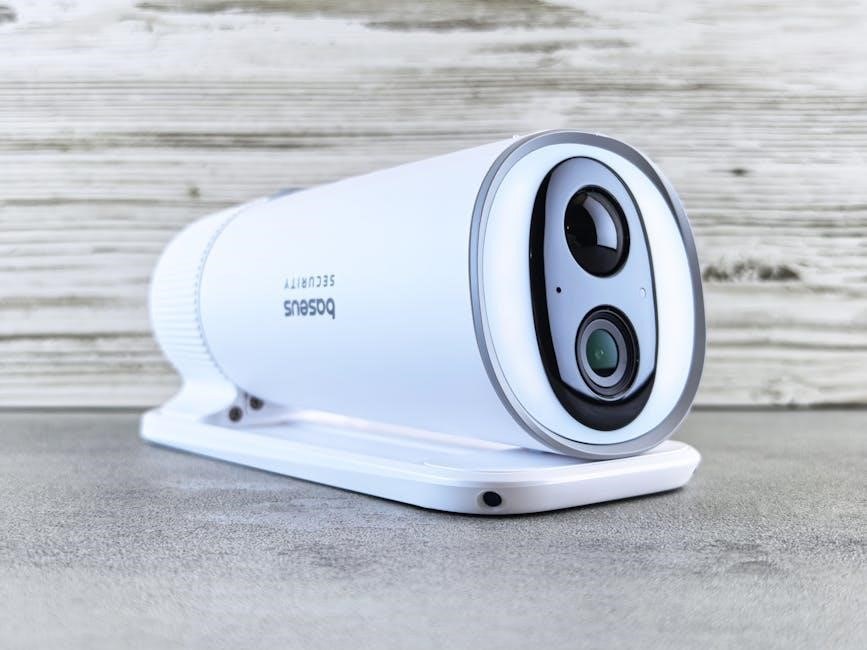
Like the single-channel view, the multi-channel view provides access to controls for each camera, including snapshot capture, recording, and image adjustments. Mirroring and indicator light control are also available on a per-camera basis. This mode is perfect for comprehensive surveillance of larger areas.
Recording Options: Real-Time, Scheduled, and Alarm
FtyCamPro provides versatile recording options to suit various surveillance needs. Real-time recording continuously captures footage from selected cameras, ensuring no events are missed. This mode is ideal for critical areas requiring constant monitoring.
Scheduled recording allows you to define specific time slots for recording, optimizing storage space and focusing on periods of higher activity. You can set different schedules for each camera, tailoring the recording to individual requirements.
The alarm recording feature triggers recording automatically when a camera detects motion or another pre-defined event. This ensures that important incidents are captured immediately, even when you are not actively monitoring the system. Configure sensitivity levels to minimize false alarms.
Recordings are easily accessible through the video playback and management section of the software, allowing for quick review and analysis.
Video Playback and Management
FtyCamPro’s video playback functionality offers a user-friendly interface for reviewing recorded footage. Easily navigate through recordings by date and time, quickly locating specific events. The software supports efficient searching, allowing you to pinpoint incidents within lengthy video streams.
Playback controls include standard features like play, pause, fast forward, and rewind. You can also adjust the playback speed to suit your needs, slowing down critical moments for detailed analysis. Snapshot functionality is integrated directly into the playback interface, enabling you to capture still images from the video.
The management tools allow you to download recordings for archiving or sharing; You can also delete unwanted footage to free up storage space. FtyCamPro supports various export formats, ensuring compatibility with different devices and platforms.

Organize recordings effectively using the built-in file management system, creating folders and labels for easy retrieval.
Image Capture and Snapshot Functionality
FtyCamPro provides robust image capture and snapshot functionality, allowing users to quickly save still images from both live and recorded video feeds. This feature is invaluable for documenting events or gathering evidence. The software offers high-resolution snapshot capabilities, ensuring clear and detailed images.
During real-time monitoring, a dedicated snapshot button enables instant image capture with a single click. Within the video playback interface, you can pause the video at any frame and take a snapshot. Image mirroring options are available, allowing you to capture mirrored images if needed.
Captured snapshots are saved in a designated folder, easily accessible for viewing, sharing, or archiving. FtyCamPro supports multiple image formats, providing flexibility for different applications. The software also allows for batch snapshot export, streamlining the process of saving multiple images.
Customize snapshot settings, such as image quality and file naming conventions, to tailor the functionality to your specific requirements.
Device Control via FtyCamPro

FtyCamPro software extends beyond simple monitoring, offering comprehensive device control capabilities for compatible network cameras. This allows users to remotely adjust camera settings and functionalities directly through the software interface. A key feature is the real-time control of the device’s indicator lights, enabling discreet operation when needed.
Furthermore, FtyCamPro facilitates control over infrared (IR) lights, optimizing visibility in low-light conditions. Users can switch between IR modes – auto, on, or off – to suit the environment. The software also provides access to crucial image parameter adjustments, allowing fine-tuning of brightness, contrast, saturation, and sharpness.
This level of control ensures optimal image quality and performance. Remote pan, tilt, and zoom (PTZ) functionality is supported for cameras equipped with these features. Device control is seamlessly integrated into the user interface, providing a centralized hub for managing all camera settings.
Ensure your camera model supports these features for full functionality within FtyCamPro.
Image Parameter Adjustments

FtyCamPro provides granular control over image quality through its comprehensive image parameter adjustment features. Users can fine-tune visual output to suit specific environments and preferences. Key adjustments include brightness, allowing control over the overall light level in the image. Contrast adjustments modify the difference between light and dark areas, enhancing detail.
Saturation controls the intensity of colors, while sharpness adjustments refine image clarity. These parameters are accessible directly within the FtyCamPro interface, offering real-time previews of changes. Adjusting these settings allows for optimization in various lighting conditions, from bright sunlight to low-light scenarios.
Precise adjustments can significantly improve image clarity and detail, enhancing the effectiveness of surveillance or monitoring. Experimentation with these settings is encouraged to achieve the desired visual outcome. Remember to save preferred settings for consistent image quality. FtyCamPro empowers users to tailor the image to their specific needs.
Mirroring and Indicator Light Control
FtyCamPro offers convenient features for image manipulation and discreet operation. The mirroring function allows users to flip the image horizontally, correcting orientation when the camera is positioned in a mirrored setup or to enhance viewing convenience. This is particularly useful for specific installation scenarios where a reversed image is required for accurate monitoring.
Furthermore, FtyCamPro enables remote control of the camera’s indicator lights. This functionality allows users to disable the visible LED indicators on the camera, enhancing stealth and security. Disabling the lights prevents potential detection of the camera’s presence, crucial for covert surveillance applications.
These controls are easily accessible within the software interface, providing immediate adjustments. Both mirroring and indicator light control contribute to a more flexible and adaptable surveillance system. Utilizing these features allows for optimized performance and enhanced security measures tailored to individual needs.
Troubleshooting Common Issues
FtyCamPro users may encounter occasional issues. A common problem is camera disconnection; verify network connectivity and camera power supply. If the camera remains unreachable, reboot both the camera and your network router. Another frequent issue involves recording interruptions – ensure sufficient storage space is available on your designated recording device.
Problems with image quality can often be resolved by adjusting video parameters within FtyCamPro, such as resolution and frame rate. If experiencing software crashes, ensure you have the latest version installed and that your system meets the minimum requirements. Regularly updating the software resolves many known bugs.
For login difficulties, double-check your username and password. If problems persist, reset your password through the software’s recovery options. If these steps fail, consult the comprehensive user manual or contact technical support for further assistance. Detailed troubleshooting steps are available in the downloadable PDF manual.
Frequently Asked Questions (FAQ)
Q: What camera types are compatible with FtyCamPro? A: FtyCamPro supports a wide range of network cameras utilizing standard protocols. Refer to the compatibility list within the software or the downloadable PDF manual for specifics.
Q: Can I access FtyCamPro remotely? A: Yes, remote access is possible through appropriate network configuration and port forwarding. Detailed instructions are available in the advanced settings section of the software.
Q: How do I restore default settings? A: The option to restore default settings is located within the configuration menu. Be aware this will erase all custom configurations.
Q: Where can I find the latest software updates? A: Software updates are available for download on the official website. Regularly checking for updates ensures optimal performance and security.
Q: Is there a mobile app version of FtyCamPro? A: Currently, FtyCamPro is primarily a PC-based application. Check the official website for future mobile app developments.
Downloading the FtyCamPro User Manual (PDF)
A comprehensive FtyCamPro user manual in PDF format is readily available for download, offering detailed guidance on all aspects of the software and its functionalities. This 36-page document serves as an invaluable resource for both novice and experienced users seeking to maximize their experience with network camera surveillance.
The PDF manual covers everything from initial setup and configuration to advanced features like recording schedules, alarm triggers, and image parameter adjustments. It includes step-by-step instructions, screenshots, and troubleshooting tips to assist you in resolving common issues.
You can access the FtyCamPro manual directly from the official website’s support section. Downloading the PDF allows for offline access and convenient reference. It’s highly recommended to download and review this manual before beginning installation or operation of the software. The manual is also useful for understanding device control options, mirroring features, and indicator light settings.